
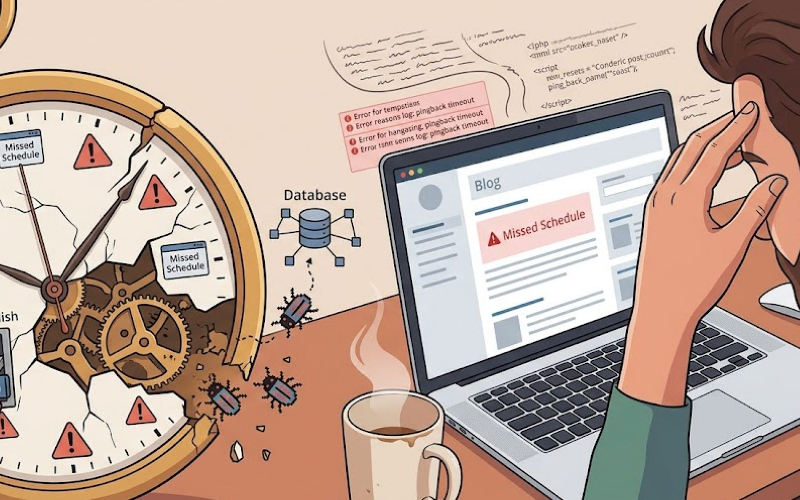
You hit “Schedule,” close your laptop, and grab a coffee. Two hours later, you check your site and your post is sitting there with a “Missed Schedule” error mocking you.
You start Googling and find a decade’s worth of confusing forum threads talking about “pingback timeouts.”
Let’s cut the noise and just fix the damn thing.
The Harsh Truth About Pingbacks
First, let’s address the pingback issue: turn them off. Seriously. They used to be a clever SEO hack back when keyword stuffing was a viable career path.
Now, they’re nothing but an open door for spam bots to hammer your database. Go to Settings > Discussion and uncheck that box. Let it go.
But wait—if pingbacks are useless, why do you care about the timeout error that usually breaks them?
Because the exact same broken pipe handles your scheduled posts, automated backups, and plugin updates. If one fails, the rest go down with the ship.
The Root Cause: A Flawed Fake Cron
The problem isn’t a glitch; it’s a structural flaw in how WordPress runs background tasks.
It uses a virtual system called WP-Cron. Every time a human visits your site, WordPress pings itself (specifically wp-cron.php) to see if it needs to do chores.
To stop this process from slowing down the page load for your actual visitor, WordPress sets an absurdly aggressive timeout for this request: 0.01 seconds.
Most modern hosting setups look at a connection closing that fast, assume it’s a broken error, and drop it forcefully.
When that happens, your background tasks fail. Your posts don’t publish. Your backups don’t run.
The Fix (Without Breaking Your Site)
You will undoubtedly find old tutorials telling you to hack the WordPress core wp-includes/cron.php file to change the timeout from 0.01 to 1 second. Do not do this.
The next time WordPress runs an automatic update, it wipes out your manual edits, and you are right back to square one.
Here is how you fix it permanently, depending on how much access you have to your server infrastructure.
Method 1: The Code Snippet (Quick & Dirty)
If you are stuck on shared hosting or just don’t have access to your server’s control panel, you can force WordPress to wait a full second using a built-in hook.
Drop this into your child theme’s functions.php file or your preferred code snippets plugin:
add_filter( 'cron_request', function( $cron_request_array ) {
    $cron_request_array['args']['timeout'] = 1;
    return $cron_request_array;
} );
Method 2: A Real System Cron (The Right Way)
If you want a site that actually stays together under pressure, fire the fake WP-Cron and let your server handle the scheduling like an adult.
Step 1: Kill the virtual cron
Open your wp-config.php file and add this line right above the “That’s all, stop editing!” text.
define('DISABLE_WP_CRON', true);
Step 2: Set up the real cron
Log into your hosting panel (cPanel, RunCloud, or whatever dashboard you use) and find the Cron Jobs section.
Tell the server to hit your cron file every 5 to 15 minutes with the following command. Just make sure to swap yourdomain.com for your actual URL:
wget -q -O - https://yourdomain.com/wp-cron.php?doing_wp_cron >/dev/null 2>&1
By offloading this chore to the server, your scheduled posts will publish on time with absolute reliability.
Plus, your site loads a tiny bit faster because it isn’t waiting on phantom background tasks every time someone clicks a link.