
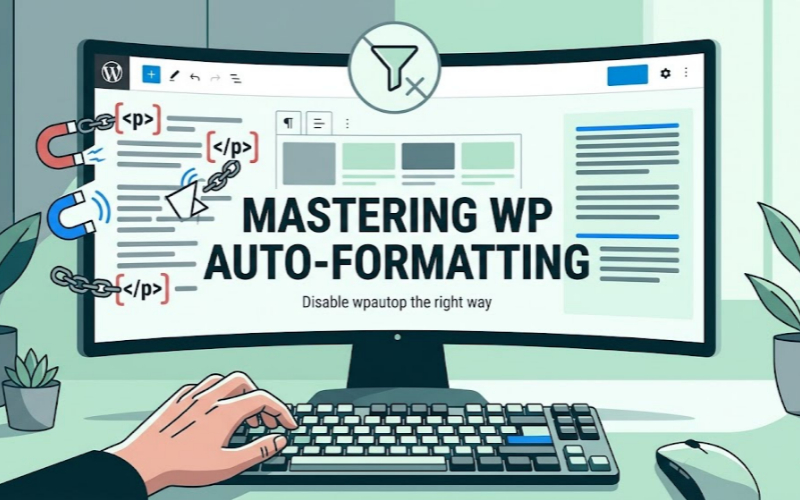
You’ve been there.
You spend an hour getting a WordPress page/post to look exactly right. You hit update. You check the front end.
And WordPress decided to “help” you by wrapping everything in invisible paragraph tags. Your layout is ruined.
That’s wpautop. It’s a core function that takes double-line breaks and shoves <p> and </p> tags around them.
If you’re mostly building with the Gutenberg block editor, it bypasses this issue by spitting out raw HTML. But if you’re still maintaining the Classic Editor, building custom post types, or relying on shortcodes? It’s a relentless headache.
Here are the simple code snippets to disable this automatic formatting.
Let’s get one thing straight before we start. Don’t go hacking your parent theme’s files. Place these PHP snippets in your child theme’s functions.php file, or better yet, use a dedicated code snippet plugin. Do it the right way so a random update doesn’t wipe out your fix at 3:00 AM.
Kill It Everywhere
Drop these lines into your theme’s functions.php file to disable the wpautop filter globally.
Once inserted, WordPress will stop automatically adding those tags to all your post content and excerpts.
remove_filter( 'the_content', 'wpautop' );
remove_filter( 'the_excerpt', 'wpautop' );
Kill It on Specific Pages Only
Maybe you don’t want to break your regular blog posts. You just need this thing turned off for a specific landing page so your layout stops breaking.
On line 3, swap out 'name-of-page' with the actual slug or ID of the page you are trying to fix.
add_filter( 'the_content', 'specific_no_wpautop', 9 );
function specific_no_wpautop( $content ) {
    if ( is_page( 'name-of-page' ) ) {
        remove_filter( 'the_content', 'wpautop' );
    }
    return $content;
}
Kill It in Custom Post Types
Building a portfolio, a testimonial slider, or a custom product catalog? You definitely don’t want automated tags messing with your custom post types.
Replace 'custom_post_slug' with the actual name of your post type.
add_filter( 'the_content', 'disable_wpautop_cpt', 9 );
function disable_wpautop_cpt( $content ) {
    if ( 'custom_post_slug' === get_post_type() ) {
        remove_filter( 'the_content', 'wpautop' );
    }
    return $content;
}
The Rules-Based Approach
Sometimes you need boundaries. If you want wpautop running most of the time but need to carve out a few exceptions, like a dedicated page template, use this list-based snippet.
/**
 * Allow or remove wpautop based on criteria
 */
function conditional_wpautop( $content ) {
    // true  = wpautop is ON unless any exceptions are met
    // false = wpautop is OFF unless any exceptions are met
    $wpautop_on_by_default = true;

    // List exceptions here (each exception should either return true or false)
    $exceptions = array(
        is_page_template( 'page-example-template.php' ),
        is_page( 'example-page' ),
    );

    // Checks to see if any exceptions are met
    $exception_is_met = in_array( true, $exceptions );

    // Returns the content with or without the filter
    if ( $wpautop_on_by_default == $exception_is_met ) {
        remove_filter( 'the_content', 'wpautop' );
    }

    return $content;
}
add_filter( 'the_content', 'conditional_wpautop', 9 );
Clean Up the Mess It Left Behind
Here’s the kicker. Even after you disable the function, you might still have empty <p></p> tags rotting in your HTML. They get stuck there from the way older posts were saved in the database.
Use this to force WordPress to strip out that.
/**
 * Remove empty paragraphs created by wpautop()
 * @author Ryan Hamilton
 * @link https://gist.github.com/Fantikerz/5557617
 */
function remove_empty_p( $content ) {
    $content = force_balance_tags( $content );
    $content = preg_replace( '#<p>\s*+(<br\s*/*>)?\s*</p>#i', '', $content );
    $content = preg_replace( '~\s?<p>(\s| )+</p>\s?~', '', $content );
    return $content;
}
add_filter( 'the_content', 'remove_empty_p', 20, 1 );
Skip the Outdated Plugins
Years ago, people downloaded single-purpose plugins just to toggle this function. Most of those are abandoned now.
They sit in the repository acting as security risks waiting to happen.
Skip the outdated plugins. Grab a modern code snippet manager like WPCode or Code Snippets.
Inject the PHP safely without risking a fatal error, keep your site clean, and get back to actual work.
Helped, thanks, but you are going out of your way to write hard too understand code….